Free · Open source · No account
Lock In Tools
Free tools for people who want to lock in.
Chrome extension
HyperKeypad
Working with an AI chat means typing the same handful of instructions over and over. Explain that again. Give me an example. Quiz me on this.
0 click
What it takes to send a prompt you use constantly, instead of typing it out every time.
This is the keypad sitting on top of a normal AI chat. Nothing has been sent yet.
Pressed key 2, Explain again. That sent the whole prompt on its own, with no typing.
Paste mode is on. Pressed key 7, Explain this, and it sent "Explain this" followed by whatever was already on the clipboard, all in that one click.
Pressed key 4, Quiz me. Every prompt you use often is one click away.
Integration by parts comes from the product rule. The formula is:
∫ u dv = uv − ∫ v du
You pick one factor as u and the other as dv, then differentiate u and integrate dv.
Simpler version: you have a product of two things you cannot integrate directly. Swap the hard integral for an easier one.
Good pick. With u = ln x and dv = x² dx you get du = dx/x and v = x³/3.
= (x³/3)·ln x − x³/9 + C
A free Chrome extension that puts a small keypad on top of any AI chat. Press one key to send a saved prompt, or turn on paste mode and send whatever you copied with a single key.
Download ZIP File- Nine prompt keys ready to go, and you can add, edit, or reorder any of them
- Paste mode sends your clipboard with one key, wrapped in a template if you want
- Works on eighteen chat sites out of the box, and you can add any other site
- Your keys stay in your browser. No account, nothing tracked
Before
Typing every prompt yourself
5 steps, every single time
- Click into the chat box
- Type the whole instruction out
- Go back and fix the typo
- Press enter
- Type the same thing again on the next reply
After
With HyperKeypad
1 step, and no typing
- Press the key
Or Alt and a number, so your hands never leave the keyboard.
Chrome extension
Multi-Copy
Gathering information from several places is slower than it should be. Copy, switch window, paste, switch back, then do it again for every single piece.
0%
Less time spent moving text around, so you reach the actual work sooner.
This is the panel on a page of lecture notes. Press Capture area to start.
Dragged a green box over the first block of notes. Letting go copies it, so the counter says 1 collected.
Dragged a second box, this time over a scanned worked example. Normal copy and paste cannot select that text at all, but OCR reads it straight off the picture.
Pressed Copy everything. Both pieces land on the clipboard together as one numbered list, ready to paste wherever you want.
MATH 251 · Calculus II
Week 4 — Integration Techniques
1. Integration by parts. Comes straight from the product rule. Choose one factor as u and the rest as dv:
∫ u dv = uv − ∫ v du
Pick u as the factor that gets simpler when you differentiate it.
12. Substitution. Let u = g(x), so du = g′(x) dx:
∫ f(g(x))·g′(x) dx = ∫ f(u) du
Example 4.7
Evaluate ∫ x² ln x dx.
Let u = ln x and dv = x² dx, so du = dx/x and v = x³/3.
= (x³/3) ln x − x³/9 + C
Press capture, then drag a box over an image or scanned text.
1. Integration by parts. Comes straight from the product rule…
2. Example 4.7 — ∫ x² ln x dx = (x³/3) ln x − x³/9 + C
Clear & close
A free Chrome extension. Select any area you want to copy, as many times as you want, then paste the whole lot in one go. It also reads text out of images and locked PDFs.
Download ZIP File- Copy text you normally cannot select, like words inside a picture
- Pull text out of screenshots and locked PDFs instead of typing it by hand
- Collect from as many pages and tabs as you like, then paste it all at once
- Nothing leaves your computer. No account, nothing tracked
Before
Copying the normal way
9 steps, for every single piece
- Highlight the paragraph
- Press copy
- Switch to the other tab
- Click into the box
- Press paste
- Switch back
- Find your place again
- Scroll to the next part
- Retype anything stuck inside a picture or PDF by hand
After
With Multi-Copy
3 steps, once, for all of them
- Press Capture area and drag a box over each part, pictures included
- Press Copy everything
- Paste once, wherever you are working
Twenty pieces take the same three steps as one.
Android app
Feed Blur
Instagram is really two things in one app. The messages are worth keeping. The feed and Reels are built to hold your attention for as long as possible.
0+
Hours a year, if Reels take about three hours of your day. Imagine what else you could do with that time.
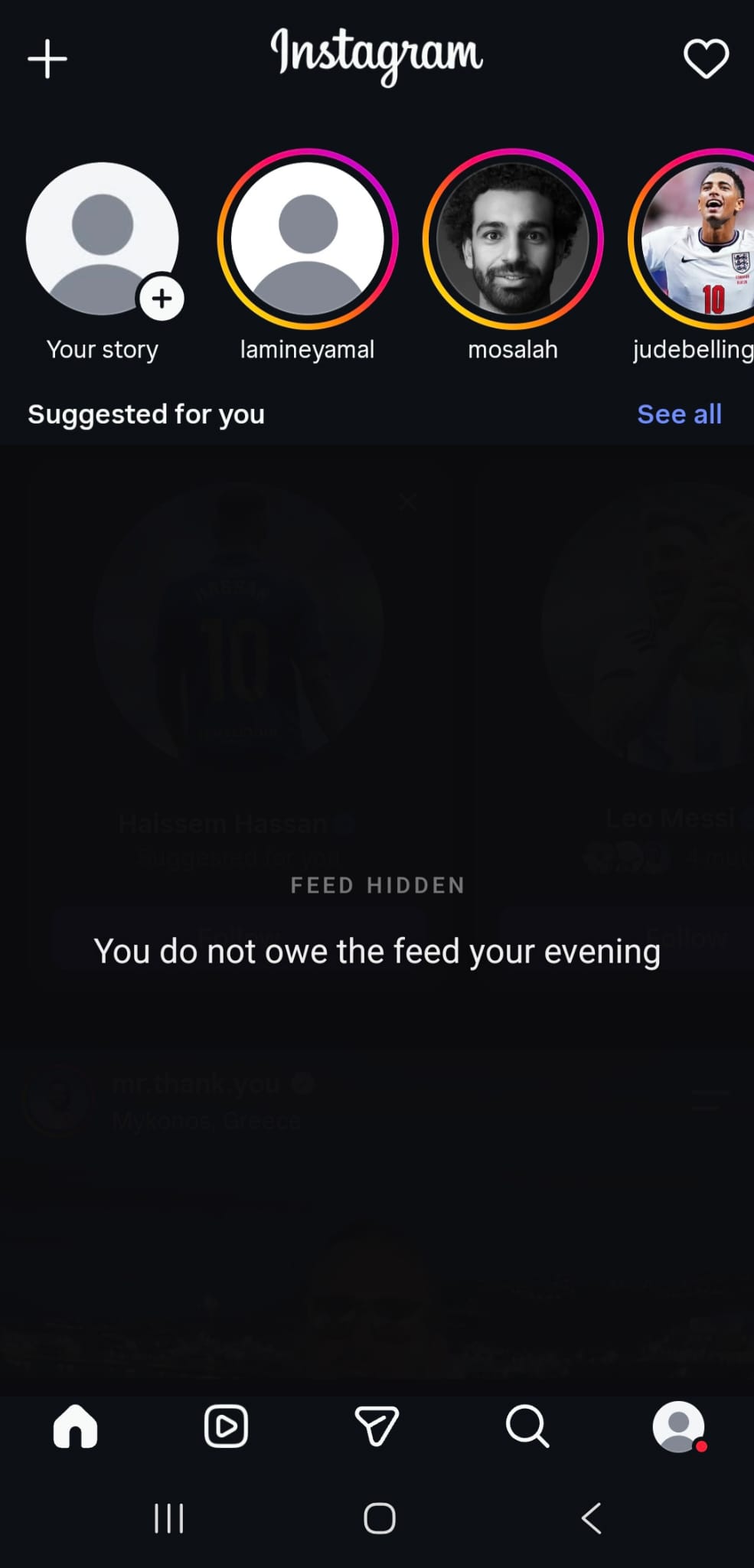 Screenshot 1
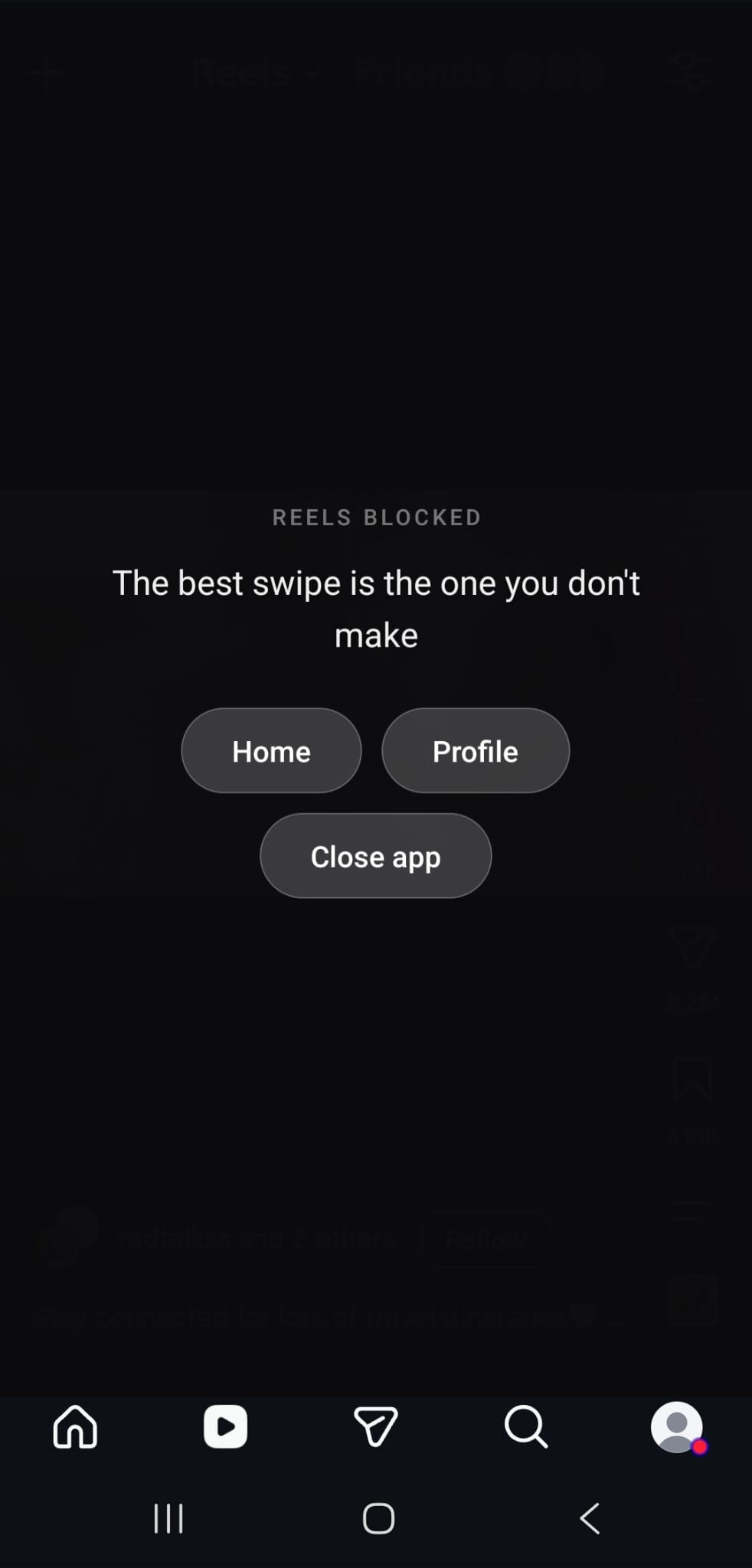 Screenshot 2
- Hides your feed, Reels, and Explore, and mutes them while they are hidden
- Leaves messages, Stories, profiles, and search working as normal
- Turning a block off takes an annoying puzzle, slower than just closing the app
- Runs entirely on your phone. No account, nothing tracked
A free Android app. It hides your feed, Reels, and Explore, and mutes them while they are covered. Messages, Stories, profiles, and search all work exactly as before.
Download APK FileBefore
Opening the app for one message
Where the time actually goes
- Open Instagram to reply to someone
- Land on the feed first
- Scroll, then tap into Reels
- Forty minutes later, close the app
- Remember you never sent the message
After
With Feed Blur
The app does one job again
- Open Instagram, the feed is already hidden
- Send your message
- Close the app
Nothing is deleted. The part you actually wanted is untouched.
Android app
Install Feed Blur
A free app for Android phones. Works on Android 12 to 16, and it never asks you to sign up.
Because Feed Blur is not on the Play Store, Android will ask you to confirm a few times while you install it. That is Android checking that you meant to do this. Only carry on if you are happy with the source.
Install it
Open this page on your phone
Tap the download button above using Chrome, on the phone you want to use it on.
Confirm the download
Chrome asks you to confirm before it saves any app file. Choose to keep the download if you want to carry on.
Open the file
Tap it in your notifications, or find it in your Downloads.
Give Chrome permission to install
Android only lets an app install other apps once you allow it. Tap Settings, turn on Allow from this source, then press back. You can switch it off again afterwards.
Install
Tap Install. Google Play Protect may offer to scan the app first, which you are welcome to let it do. This step appears for every app installed outside the Play Store.
Turn it on
Open Feed Blur
It opens on a setup screen and walks you through the two permissions it needs.
Let it see which screen you are on
Tap the prompt, find Feed Blur in the list, and switch it on. This is how the app knows whether you are looking at your messages or the feed.
Let it draw on top
This is what puts the blur over the feed. Without it, nothing gets covered.
Choose what to block
The feed, Reels, and Explore each have their own switch. Turning one on is instant. Turning one off means finishing the puzzle first, which is the whole point.
Feed Blur is not connected to Instagram or Meta. It runs entirely on your phone and never sends anything anywhere.
Chrome extension
Install Multi-Copy
A free add-on for the Chrome browser. It also works in Edge, Brave, and anything else built on Chrome. Everything it needs is inside the download, so there is nothing to set up afterwards.
Multi-Copy is not in the Chrome store, so you add the folder to Chrome yourself. It takes four extra clicks the first time and nothing after that.
Install it
Download and unzip it
You get a folder called multi-copy. Put it somewhere you will not move it, like Documents. Chrome runs the extension straight from that folder, so deleting or moving it later stops it working.
Open Chrome's extensions page
Type chrome://extensions in the address bar and press enter.
Turn on Developer mode
The switch is in the top right corner.
Add the folder
Click Load unpacked in the top left, choose the multi-copy folder, and confirm.
Pin it to your toolbar
Click the puzzle piece icon in Chrome's toolbar, then the pin next to Multi-Copy. The whole tool runs from that one button.
Use it
Click the toolbar button
A small panel appears in the bottom right. Drag it anywhere by its top edge.
Pick Text or Image
Text grabs the real words under your box and is exact. Image reads the picture instead, for screenshots, diagrams, and locked PDFs.
Grab as much as you want
Press Capture area, drag a box, let go. Then scroll, switch tabs, and do it again. The counter keeps track, and your stack survives page loads.
Copy it all at once
Press Copy everything. The whole stack lands on your clipboard as one block with a blank line between each piece, and the counter resets.
Chrome may ask on startup whether to turn off developer mode extensions. Click Keep and Multi-Copy carries on working.
Chrome extension
Install HyperKeypad
A free add-on for the Chrome browser that puts a keypad on top of any AI chat. It also works in Edge, Brave, and anything else built on Chrome.
HyperKeypad is not in the Chrome store, so you add the folder to Chrome yourself. It takes four extra clicks the first time and nothing after that.
Install it
Download and unzip it
You get a folder called hyperkeypad. Put it somewhere you will not move it, like Documents. Chrome runs the extension straight from that folder, so deleting or moving it later stops it working.
Open Chrome's extensions page
Type chrome://extensions in the address bar and press enter.
Turn on Developer mode
The switch is in the top right corner.
Add the folder
Click Load unpacked in the top left, choose the hyperkeypad folder, and confirm.
Refresh your chat tabs
Any AI chat you already had open needs a refresh before the keypad appears.
Use it
Open an AI chat
The keypad appears on its own. Drag it by the top edge, resize it, or collapse it to a single key. It remembers where you put it on each site.
Press a key
Nine prompts come ready to go, including Explain again, Give an example, Quiz me, and Summarize. Press one and it sends straight into the chat.
Make the keys your own
Add, edit, reorder, or delete any key. One switch controls whether a key sends immediately or just drops the text in the box so you can add to it.
Turn on paste mode
With paste mode on, one key sends whatever you copied. Tab is the default and you can change it to any key. You can also wrap every paste in a template, like "Explain this" followed by your text.
Learn the shortcuts
Alt and 1 through 9 press your first nine keys. Alt Shift K hides the keypad. Alt Shift P turns paste mode on or off.
Works on Claude, ChatGPT, Gemini, Google AI Studio, Grok, DeepSeek, Kimi, Mistral, Perplexity, Qwen, Z.ai, Copilot, Meta AI, Poe, HuggingChat, LMArena, T3 Chat, and Duck.ai. For any other site, open it, click the HyperKeypad toolbar icon, and press Add this site.
Help
Common questions
How each tool works, and what to do when something does not.
Feed Blur
What exactly does it hide?
Your home feed, Reels, and the Explore page. Messages, Stories, profiles, and search keep working as normal.
Can I still use Instagram normally?
Yes. You can message people, watch Stories, look at profiles, and search. Only the endless scrolling surfaces are covered.
Why does turning a block off take a puzzle?
Turning a block on is instant. Turning one off takes a fifteen step puzzle, so switching it off is slower than just closing the app. That is the whole idea.
Why does it need accessibility permission?
It is how the app knows which screen you are looking at. Without it, the app cannot tell your messages apart from your feed, so it cannot cover the right thing.
Which Android versions work?
Android 12 to 16.
Nothing is being covered
Check both permissions are on. The accessibility service tells the app which screen you are on, and display over other apps is what draws the blur. If one is off, nothing happens.
Will it slow my phone down or drain the battery?
No. It only reacts when Instagram is open and does nothing the rest of the time.
Multi-Copy
How do I collect more than one thing?
Press Capture area, drag a box, let go. Then scroll, switch tabs, and do it again. Every capture stacks up. Press Copy everything when you are done.
What is the difference between Text and Image mode?
Text grabs the real words under your box and is exact. Image reads the picture instead, which is what you want for screenshots, diagrams, and locked PDFs.
How do I copy text out of a picture?
Switch to Image mode, then drag a box over the part you want. It reads the words off the screen and adds them to your stack.
Does my stack survive changing pages?
Yes. It survives page loads and stays in sync across tabs, so you can collect from several tabs into one result.
I captured the wrong thing
Press Undo last. It removes the most recent capture and leaves the rest of your stack alone.
Nothing happens on some pages
Chrome blocks every extension from its own pages, including chrome:// addresses and the Chrome Web Store. Nothing works there, and that is a Chrome rule rather than a bug.
The text came out wrong
That happens in Image mode when the text is small. Zoom the page in first, then draw the box a little tighter around the words.
Chrome keeps asking about developer mode
Click Keep. The extension carries on working. Chrome shows that prompt for anything installed outside its store.
HyperKeypad
Which chat sites does it work on?
Claude, ChatGPT, Gemini, Google AI Studio, Grok, DeepSeek, Kimi, Mistral, Perplexity, Qwen, Z.ai, Copilot, Meta AI, Poe, HuggingChat, LMArena, T3 Chat, and Duck.ai.
Can I add a site that is not on the list?
Yes. Open the site, click the HyperKeypad icon in your toolbar, and press Add this site. Chrome asks permission for that one site only. This works for self hosted tools too.
What are the keyboard shortcuts?
Alt and 1 through 9 press your first nine keys. Alt Shift K hides or shows the keypad. Alt Shift P turns paste mode on or off. You can change the last two at chrome://extensions/shortcuts.
What does paste mode do?
With paste mode on, one key pastes whatever you copied into the chat and sends it. Tab is the default and you can change it to any single key in Settings.
Can I make a key send my clipboard along with a prompt?
Yes. Put {clipboard} anywhere in a prompt and your copied text goes in that spot. Without it, your text is added at the end.
Can I stop a key sending straight away?
Yes. One switch controls every key. Type only drops the prompt into the chat box without sending, so you can add to it first.
A key stopped sending
That usually means the site changed its layout. Click once inside the chat box and try again. The keypad falls back to the box you last clicked.
Can I save my keys?
Yes. Settings has a Download backup button that saves a .hkpad file, and Restore backup brings it back.
The keypad is in my way
Drag it by the top edge, resize it, or collapse it to a single key. It remembers where you put it on each site separately.
Everything else
Are these really free?
Yes. All three are free and open source. There is no account, no trial, and no paid version.
Do you collect any of my data?
No. The site has no cookies, analytics, or trackers, and all three tools run entirely on your own device.
Why are the extensions not in the Chrome store?
Store review takes time and costs money. Installing the folder yourself takes four extra clicks once, and nothing after that.
How do I update to a newer version?
Download again, unzip over the old folder, then open chrome://extensions and press the refresh arrow on the extension.
How do I remove one?
For the extensions, open chrome://extensions and press Remove. For Feed Blur, uninstall it like any other Android app.
Three problems worth solving.
Who I am
I'm Dawud, a passionate builder. I build tools when I run into a problem that seems worth fixing properly rather than working around.
Feed Blur
Instagram is really two things in one app. The messages are useful, and being able to reach classmates, teammates, and people whose work you want to be near is worth keeping.
The feed and Reels are a different story. They are built to hold attention for as long as possible, which is the opposite of what anyone needs when they are trying to get something done.
Deleting the app costs you the messages. Feed Blur hides the feed, Reels, and Explore instead, and leaves everything else exactly as it was.
Multi-Copy
Gathering information from several places is slower than it should be. Copying one thing, switching windows, pasting, switching back, and doing it again for every piece adds up fast, and none of that is actual work.
Multi-Copy lets you grab as much as you want in one pass and paste it all at once. It also reads text out of images and locked PDFs, the kind that normally leave you retyping everything by hand.
HyperKeypad
AI chats are now part of how most people work, but using one still means typing the same instructions over and over. Explain that again. Give me an example. Quiz me on this.
If a tool is that useful, getting your question into it should take a keypress, not a sentence you have typed a hundred times. HyperKeypad puts your prompts on a keypad, so one key sends them.
Why they are free
All three are free and open source. There is no pricing page and there will not be one.
The code is public, so anyone can read it, change it, or take it apart. If any of them gives you back an hour, that is the point.
Dawud
Terms and privacy
The short version: nothing is collected, nothing is sold, and nothing here is a paid service.
About this project
Lock In Tools is a personal, non commercial project. All three tools are free, open source, and made by one person. This is not a company and not a professional service.
Disclaimer
There is no warranty of any kind. Nothing here is sold and none of it is run for profit. Use the tools at your own risk and decide for yourself whether they suit what you need.
Nobody is liable for any loss, damage, or lost work that comes from using them.
None of these tools are connected to, endorsed by, or affiliated with Instagram, Meta, Google, OpenAI, Anthropic, or any other company named on this site.
Privacy
This site does not use cookies, analytics, or trackers. There is no sign up and no account. No personal information is collected, stored, shared, or sold, and there is nothing here to opt out of.
All three tools run entirely on your own device. None of them send anything to any server, including mine.
HyperKeypad reads your clipboard only at the moment you press a paste key, and it sends that text only to the chat you are already typing into.
Downloads
The download buttons serve files directly from this site. Downloading and installing anything is your own decision. All three tools are open source, so the code can be read before you install it.
Hosting
This site is hosted by Vercel. Like almost every website, they may keep standard server logs, which can include your IP address. That is their process, not mine, and I have no access to it.